
See the forms on your website—and the privacy questions they raise
By CertScore.ai
Find observed forms and fields, open available form screenshots, and give your next website privacy review a clearer starting point.
A contact form asks for an email address. A booking enquiry adds a date of birth. A newsletter checkbox arrives already selected. Before a team can review data collection, it needs to see what the website is asking visitors to provide.
CertScore.ai brings observed forms, retained field details and available form screenshots into your website report. Developers can locate the form, agencies can explain it to a client, and privacy reviewers can start with the captured evidence.
A clearer view of data collection
Our September forms capture updates bring a dedicated Forms & fields inventory to single-page and full-site reports, with verified, masked form crops when screenshot capture succeeds. Today’s announcement introduces the combined workflow; these capabilities began rolling out earlier in September.
Form detection, screenshot capture and privacy assessment each answer a different question: what was observed, what can be shown, and what the retained evidence supports. A detected form is not automatically a privacy concern.
From a form to the details that matter
The screenshot adds visual context to the structured inventory: which fields sit together, how they are labelled and what the visitor is shown. Unavailable images remain clearly marked, while retained field details stay available for review.
- Find the captured page and review each form’s type, fields and configured action. The action describes its setup, not an observed data transfer.
- Expand a form to inspect labels, field types, required states, checkbox or toggle states and evidence references.
- Choose View form to open its cropped screenshot when capture and safety review succeed. Input values are masked.
- Use field-review indicators to prioritize questions about personal data, sensitive-looking fields and selected marketing controls.
Turn visual evidence into better questions
Imagine handing a developer a review request with the page, field labels and captured form attached. Instead of “check the forms,” the conversation can be specific: Why is this field required? Does the privacy notice explain its purpose? Should this marketing choice start selected?
Field-review indicators help route that conversation. They are not privacy findings and do not affect the score by themselves; read them alongside the report’s separately supported findings.
For teams reviewing GDPR risk signals, form evidence is a practical starting point for checking data collection against privacy notices and intended implementation. Human review remains essential.
A real capture from our owned test page
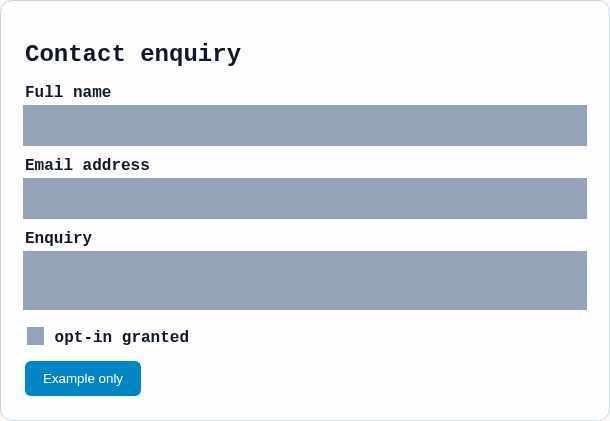
On September 21, 2026, a production scan of our owned ErgoVeritas contact-form fixture retained four fields: Full name, Email address, Enquiry and an unchecked opt-in control. The report recorded the email field as required and retained a matching, masked form screenshot.
The report surfaced no privacy findings. Its field-review cues identify personal-contact, identity and free-text fields worth checking—a concrete starting point for review.
Try it in your next review
You can copy the forms table as JSON. API v2 report-evidence exports and MCP report-evidence retrieval also carry retained form details, coverage and snapshot links, subject to the report’s access rules. Images remain separate downloads.
- Scan an eligible public website or open a recent completed report.
- Find Forms & fields below Services & Resources and expand a form.
- Open View form where available, check the source page and evidence references, and read any coverage limitations.
- Review the relevant Detailed evidence and share a precise follow-up with the developer or privacy owner.
Availability and limits
Forms capture is available in supported public single-page scans and on inventoried pages of full-site scans, within your existing access and crawl limits.
CertScore.ai does not fill or submit forms. Coverage is bounded; see the Forms & fields guide below for capture details and exclusions. Automated observations, not legal advice.
Try it
Take a closer look at your forms
Run a public website scan, then open Forms & fields in the completed report.